
The short answer
Here's the rule we use on every site we build:
- Real photos for proof. Anything that says "this is us" or "this is our work": your team, your jobs, your shop, your food, your products.
- Stock for everything else. Backgrounds, textures, ideas in a guide, a placeholder while a new business builds up its own.
- Never stock people presented as your staff, stock jobs presented as your work, images taken from Google Images, or AI images used as proof.
- Size every photo for the web before it goes on the site, and give it alt text that says what it shows.
Real photos don't have to be professional. A well-lit phone photo of a finished job you actually did beats a perfect stock photo of a job you didn't. The rest of this guide is about how to get there.
Why real photos win
People have seen a lot of stock photography. The bright office, the handshake, the model in a spotless hard hat, the family laughing in a kitchen nobody cooks in. They might not say "that's stock", but they feel it, and it makes the rest of the page feel staged too.
A real photo does what text can't. It shows the size of your crew, the trucks they'll see in the driveway, the quality of the tile work, the plate they'll be served. It's proof, in the same way a review or a license number is proof, and it's one of the main things a visitor uses to decide whether you're the real thing. That's why we put real work near the top of a home page; see what to put on your home page.
Real photos also make you recognizable. When a customer has seen your truck and your face on the site, the person ringing the doorbell is someone they already sort of know.
When stock is fine, and when it hurts
Stock is fine for
- Backgrounds and textures behind a headline: sky, wood, stone, a blurred street. Nobody reads them as a claim about you.
- Concepts in a guide or a blog post: a calculator for a cost article, a calendar for a scheduling one.
- A brand new business that hasn't done many jobs yet. Use neutral stock as a placeholder and replace it job by job. Just don't caption it as your work.
- Places, if the photo is really of that place and properly licensed.
Stock hurts when it pretends
- Fake team photos. A row of smiling models under "Meet our team" is the fastest way to make a visitor wonder what else isn't true.
- Fake job photos. A magazine kitchen in a remodeler's gallery, or a stock roof on a roofer's home page, says your own work isn't worth showing.
- Fake customers. Stock faces next to reviews make real reviews look made up.
- Fake places. A stock warehouse on a manufacturer's "our facility" page, or a stock dining room on a restaurant's site.
If you have no real photo for a spot yet, a simple layout with no photo at all is better than a fake one.
| Photo type | Real or stock | Why |
|---|---|---|
| Your team or staff | Real, always | A stock "team" is a claim you can't back up. People spot it. |
| Finished jobs and projects | Real, always | This is the proof. A stock kitchen says nothing about your kitchens. |
| Before and after | Real, always | Only works if it's the same place, shot from the same spot. |
| Your shop, office, trucks or storefront | Real | Helps people recognize you when you pull up or when they arrive. |
| Food, at a restaurant | Real | Customers expect the plate they're served to look like the photo. |
| Your products | Real | Buyers want the exact item, color and finish. |
| Page backgrounds and textures | Stock is fine | Wood grain, sky, a blurred street. Nobody reads it as a claim. |
| Ideas and concepts in a guide or blog post | Stock is fine | A calculator on a desk can illustrate "cost" honestly. |
| A town or landmark | Your own, or properly licensed stock | Fine either way, as long as it's really that place. |
| Placeholders on a new business site | Stock, for now | Swap in your own as soon as you have jobs to shoot. |
The rule underneath the table: if the photo implies "this is us" or "this is our work", it has to be real.
How to shoot your own job photos on a phone
Any recent phone takes photos good enough for a website. What makes the difference is how you take them. Six habits get you most of the way:
- Clean the site first. Move the ladder, the shop vac, the coffee cups and the offcuts. Sweep. Wipe the fingerprints off the new appliance. Five minutes of tidying is the cheapest way to make a photo look professional.
- Use daylight. Open the blinds, turn on the room lights too, and shoot during the day. Avoid shooting straight into a bright window. Outside, a bright overcast day is easier than harsh noon sun.
- Hold it level and at chest height. Turn on the grid lines in your camera settings and keep vertical lines (door frames, cabinet edges, siding) straight up and down. Tilted walls are what make a phone photo look like a phone photo.
- Shoot from the corner or the doorway. A corner shot shows more of a room. Then step in for details. Don't use the digital zoom; walk closer instead.
- Take before and after from the same spot. Stand in the same place, at the same height, facing the same way. Mark the spot with tape or take a photo of where you stood. That's the only way a before-and-after pair really works.
- Take landscape and vertical. Landscape (sideways) is what most website layouts need, especially across the top of a page. Vertical is what social media wants. Take both of the shots you care about.
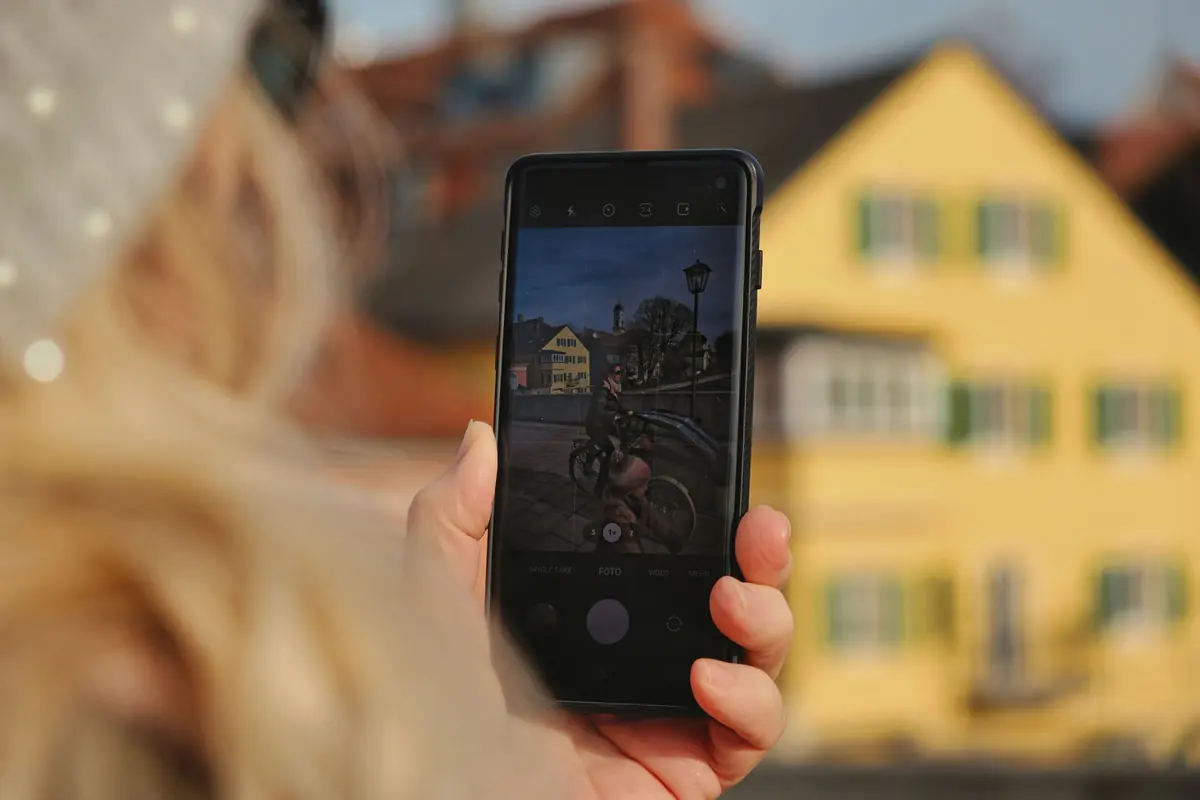
A few more small things: wipe the lens on your shirt before you start (pocket lint makes everything hazy), tap the screen on the main subject so it's in focus, and take three or four of each shot so you can pick the sharpest one later.
Worked example: building a gallery one job at a time
An invented example: a two-person remodeling crew finishing a bathroom in Rockford. Before demolition, they take five minutes for the before photos; on the last day, ten minutes for the after photos, once the room is clean. The list they work from:
A shot list for one job (an invented bathroom remodel)
- Before: the room or area from the doorway, the main angle you'll repeat after.
- Before: one or two close-ups of the problem (the rot, the leak, the cracked tile).
- During: two or three photos that show the work and the care taken (framing, waterproofing, protection on the floors).
- After: the same doorway angle as the first before photo, same height, same light if you can.
- After: the details you're proud of (the tile line, the trim, the fixtures).
- After: one wide landscape shot for the website and one vertical shot for social.
- A photo of your truck or sign on site, if the customer is fine with it.
That's about fifteen photos per job, of which maybe five make it to the website. After a season, they have a real gallery, a before-and-after for every service page and plenty for social media, without hiring anyone.
Ask the customer before you photograph their home, and keep house numbers, license plates, family photos and anything personal out of shot. Most people are glad to say yes if you ask at the start of the job.
When to hire a local photographer
Phone photos cover job photos well. A professional is worth it for the photos that set the tone of the whole site:
- Your team. Group and individual portraits for the about page. These are hard to do well yourself.
- Your place. A storefront, a showroom, a clinic, a dining room, a shop floor.
- Food, for restaurants. Food photography is a skill of its own.
- Flagship projects, the two or three jobs you'd show anyone, especially for remodelers and builders.
- Products, if you sell online and the photos decide the sale.
Before you book, ask:
- What can I use the photos for? Get it in writing that you can use them on your website, social media, ads and print, for as long as you like.
- How many edited photos do I get, and how soon?
- What size and format will they deliver? Ask for full-size files; resizing for the web comes later.
- Can they shoot both landscape and vertical versions of the key shots?
One well-planned half-day shoot usually covers a small business for years, if you plan the shot list ahead of time. On our web design projects we can recommend a local photographer, or work with your own photos or clean stock, whichever fits.
Licenses: what you're allowed to use
Every photo belongs to someone. You can use a photo on your site if you took it, if you paid for it with a license that covers website use, or if its license says anyone may use it.
- Pexels and Unsplash both offer photos under their own free licenses, which allow free use, including on a business website, without paying or crediting the photographer (though crediting is a nice thing to do). Each license has a few limits, for example around selling unaltered copies or showing an identifiable person in a way that suggests they endorse you. Read the license page on each site once.
- Paid stock libraries sell licenses per image or by subscription. Check what the license covers before you use a photo in ads or print.
- Photographers own their photos unless they sign the rights over. What you're allowed to do is whatever your agreement says, so get it written down.
- Never take images from Google Images or from another business's website. Google Images is a search engine, not a library: the photos it shows belong to whoever published them, and "I found it on Google" isn't a license. Copyright owners do find their photos on other sites and send claims.
AI-generated images
AI image tools can make a convincing kitchen, a smiling crew or a plate of food in seconds. The problem is that none of it is real. An AI image of a finished deck on a deck builder's site is a fake job photo, just made a different way, and it carries the same risk: a customer who finds out stops trusting everything else on the page. Our advice: don't use AI images as proof of anything (work, people, places, products). If you use one at all, keep it to obvious illustrations or backgrounds, and if there's any chance it reads as real, label it.
File size and formats
A photo straight off a modern phone is several megabytes, and thousands of pixels wide. A website shows it at a fraction of that size. Upload the original and every visitor downloads all of it, which is one of the most common reasons small-business sites are slow on phones. Fix it in two steps:
- Resize to about the size it's shown at. A photo that fills the width of the page needs to be around 2,000 pixels wide at most. A photo in a column of text needs much less. Good sites serve a few sizes of each image so a phone gets a smaller file than a big monitor.
- Compress it and use a web format. WebP gives you a much smaller file than JPG at the same visible quality, and every current browser supports it. JPG is still fine if it's compressed. PNG is for graphics and screenshots with sharp edges or transparency, not photos. Logos and icons are best as SVG.
Two more habits help: let photos below the first screen load lazily (only when someone scrolls toward them), and always set each image's width and height so the page doesn't jump around as it loads. Both help with the speed measures Google looks at, which our guide on page speed and Core Web Vitals explains.
Our free Image Optimizer resizes and converts photos to WebP in your browser, so you can fix a batch before sending them to your designer or uploading them yourself.
Name the files for what they show, too. bathroom-remodel-walk-in-shower.webp tells search engines and future you what the photo is; IMG_4471.jpg tells nobody anything.
Alt text: describe the photo
Alt text is a short description of an image, written into the page's code. Screen readers read it out to people who can't see the image, and search engines use it to understand what the image shows. It's part of making a site accessible, which we cover on our accessibility page.
Good alt text says what's in the photo and why it's there, in a sentence or less:
- Weak: "image1", "photo", "kitchen", or nothing at all.
- Stuffed: "kitchen remodel Buffalo MN best kitchen remodeler Buffalo kitchen remodeling". This helps nobody and reads terribly out loud.
- Good: "A finished kitchen with white shaker cabinets, a quartz island and pendant lights."
- Good, for a before photo: "The same kitchen before the remodel, with dark oak cabinets and laminate counters."
Photos that are purely decorative, like a background texture, should have empty alt text so screen readers skip them. Don't start with "image of" or "photo of"; screen readers already announce that it's an image. Our free Image Alt Text Checker lists every image on a page and flags the ones with missing or weak alt text.
What to shoot, by business
A short list of the photos that matter most for a few kinds of business:
- Contractors and trades: finished jobs, before-and-after pairs, the crew on site, the trucks. See web design for contractors.
- Remodelers: galleries by room, with a before for the best ones. See web design for remodelers.
- Restaurants: your actual dishes, the dining room, the outside so people can find it. See restaurant web design.
- Clinics: the providers, the front desk, the rooms. Never a patient without written consent; check with whoever handles your privacy rules.
- Manufacturers: the machines, parts you're allowed to show, the shop floor, the people running it.
- Nonprofits: the real people and animals you help, with permission. A rescue's adoptable animals are the site.
If you're a contractor in Monticello or anywhere around it, the fastest upgrade to most sites we see is replacing stock with six real job photos.
Photo checklist
Go through your site page by page with this list.
Photo checklist for your site
- Every photo of your team, your work and your place is real.
- No stock photos of strangers presented as your staff or customers.
- Before-and-after pairs are taken from the same spot.
- You have the right to use every photo: your own, a photographer's with a written license, or free-license stock.
- No images copied from Google Images or another business's site.
- No AI-generated images used as proof of work, people or places.
- Customers have agreed to photos of their home or business, and house numbers and plates are out of shot.
- Photos are resized to about the size they're shown at, and saved as WebP or a compressed JPG.
- Photos below the first screen load lazily, so they don't slow the top of the page.
- Every meaningful photo has alt text that says what it shows; decorative ones have empty alt text.
- File names describe the photo, not IMG_4471.
If you're rebuilding the site anyway, photos and words are the two things to gather first. Our guide on website copywriting basics covers the words.
Want a straight answer for your business?
Every Stonekept build is custom-coded, hosted on Cloudflare and kept on a monthly plan. Prices are public: builds from $2,200 with care from $199/mo. See pricing or tell us about your project and we'll give you an honest read, even if that's not us.